We repeatedly receive support requests from users who want to reactivate OCAD on a new computer.
OCAD Single User licenses can be activated independently on a new device, even if the old device is no longer accessible!
Simply install OCAD on the new device and start the activation process. During the activation process you will see on which devices the Single User license has been activated and you will have the option to deactivate the license on another device.

You can then complete the activation process yourself.

Reminder: Transfer of OCAD Team licenses
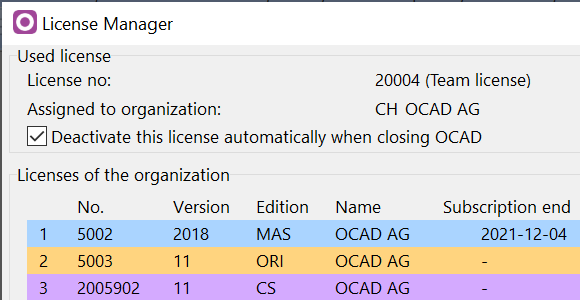
For OCAD Team licenses, we recommend to set the option Deactivate this license automatically when closing OCAD in the License Manager tool in the Help menu,
If a Team license got stuck somewhere (e.g. hard disk failure, license transfer has not worked correctly or due to an inactive user), use the Transfer form on our website. We will reset the license so it can be installed and activated again on a new device.