In OCAD, there are many Tips with Keyboard and Mouse, to optimize your navigation, drawing and editing skills.
We have compiled the most important tips for you.
Watch our new video and become a better OCAD user in just 15 minutes.
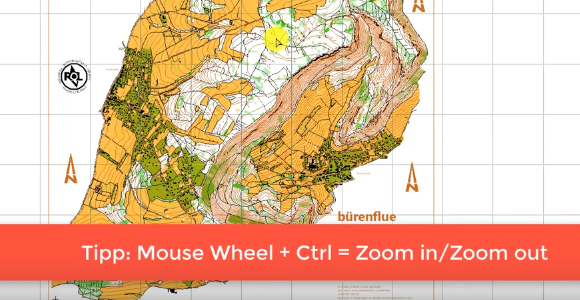
In OCAD, there are many Tips with Keyboard and Mouse, to optimize your navigation, drawing and editing skills.
We have compiled the most important tips for you.
Watch our new video and become a better OCAD user in just 15 minutes.
Use the newly added Fill Bounded Area Mode to automatically fill empty areas that are bounded by various objects from line or area symbols.
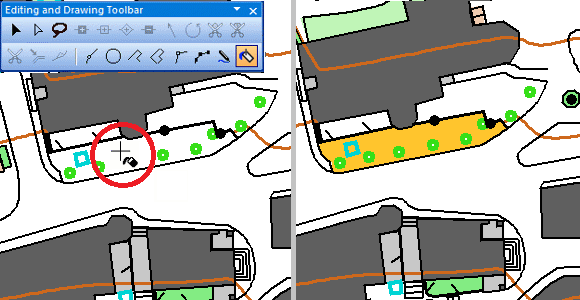
The area, that is entirely surrounded by objects will be filled with the selected symbol. If the area is not surrounded entirely by objects, the current view of the drawing window will be filled.
If you work with orienteering symbol sets (ISSprOM 2019, ISOM 2017), the function will ignore certain symbols like contours and north lines.
There are 3 types of vertices: Normal-, Dash- and Corner Vertices.
Depending on wich Vertex Type you use, it will influence segments and line objects.
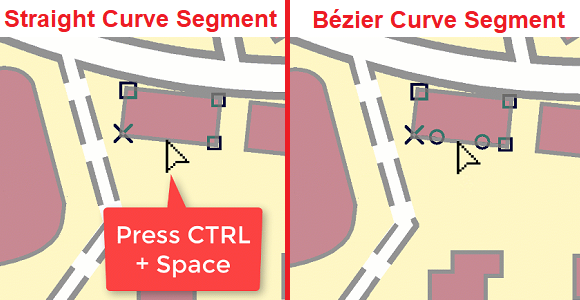
If you hold CTRL+SPACE key and click on a vertex, you can toggle through the different vertex types.
To toggle between straight and bezier curve segments, press CTRL+SPACE key and click on a segment.
It is now possible to copy/paste objects forth and back between two maps. A coordinate system needs to be set in both maps, but not necessarily the same one. Also, the map scales can be different. The pasted objects appear automatically at the right spot.

One of the strengths of OCAD is the generation of smoothed contour lines.
With the latest Service Update, a combined method of TPI and 3D smoothing is used for the calculation, which leads to improved results. The file size also shrinks, because at the same time irrelevant contour vertices are removed and the contours are converted into Bézier curves.
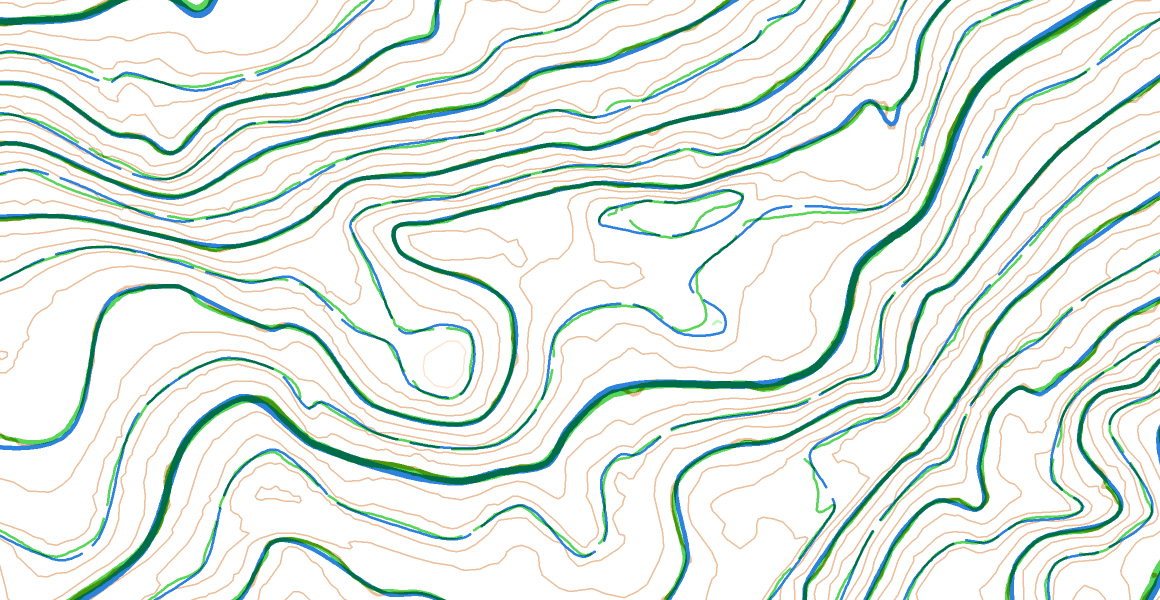
In our example, the not smoothed contours appear brown. The smoothed contours according to the new method (blue) are cleaner and show the terrain more precisely than according to the old smoothing method (green).
How contour lines can be generated is described in detail in our Wiki.