We are delighted to announce another milestone in the development of OCAD.
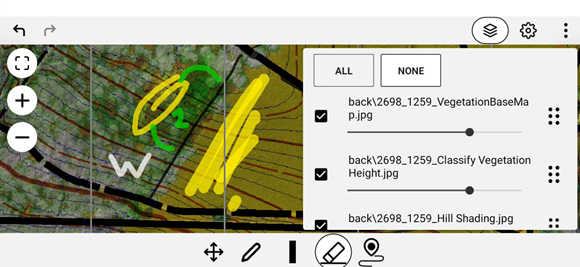
The OCAD App is now available as a beta version!
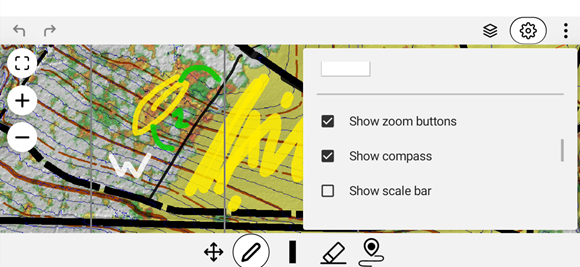
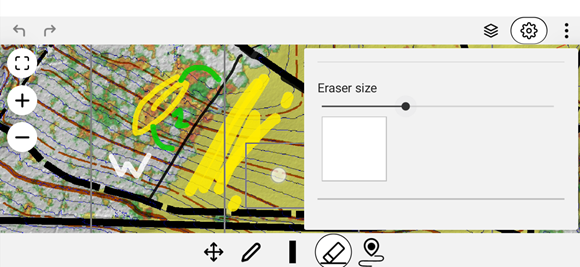
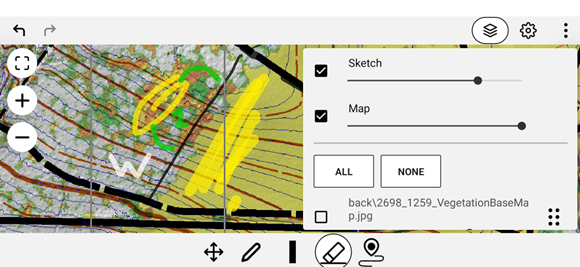
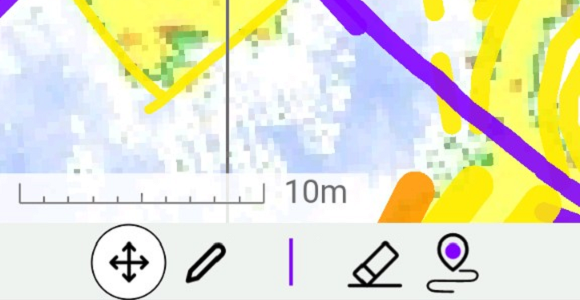
With the OCAD App, we are taking map making on mobile devices to a new level. While the previous OCAD Sketch App only allowed you to sketch, the new OCAD App enables you to edit the entire map. There are also many improvements to make mapping in the field even more ergonomic and efficient.
With the latest OCAD Update, an option has been added to the Colors dialog to define Base Colors from which the values of the other colors are derived. This makes color management easier for people who print maps.
How base colors work
The Base Colors dialog can be opened in the Colors dialog.
There, base colors can be defined and edited. Base colors sets can also be loaded and/or exported.
Back in the Colors dialog, colors can be assigned to a base color or removed again. With the Assign colors to base colors function, OCAD attempts to assign colors automatically. In addition to the base color, a percentage value for the base color must also be defined (more on the end of the article).
If colors need to be adjusted based on a test printout, only the base colors need to be adjusted, and the colors assigned to that base color will change accordingly.
Why was this feature developed?
Depending on the printer and paper used, the CMYK values in the Colors dialog may need to be adjusted to achieve good print quality. This can be tedious, as there are over 50 colors defined in the standard symbol set for orienteering maps.
By defining base colors, only a few base colors need to be defined. When changing the CMYK values of the base colors, the derived colors change too.
In addition, you can export the base colors suitable for your printer as a new set. Next time you receive a map for printing, you can reload this color set.
Do all colors have to be assigned to a base color?
No, not all colors have to be assigned to a base color. For example, colors for logos can still be set using CMYK values.
Also, not all colors in the symbols sets are not assigned to a base color, as they would not meet the exact colors values defined by IOF.
Should I work with base colors or not?
For new maps, it is recommended to work with base colors. They are already correctly defined and assigned for the different colors in the current symbol sets.
For existing maps, some effort is required to add all colors correctly to the base colors. Also, it is still possible to adjust the color table e.g. by using the Color Swatch function.
It is up to you to decide whether or not to assign colors to the base color for old maps. Experience has shown that many older maps have an outdated symbol set and colors. Before you start to assign colors to base colors, it might be a good idea to use the Symbol Set Conversion function. This will update your map to the current symbol set defined by the IOF. Also, it will directly replace your color table. True to the motto: If you’re going to do it, do it right.
Best practices for printing orienteering maps
The colors on the screen can differ a lot from the colors on the printed map. It is not only the color settings in OCAD that are decisive, but also the paper used, the printer, the printer settings and the printer driver.
Therefore, it is important to always make a test print, check the printout using a reference sheet, and adjust the colors in OCAD (or adjust printer settings) if the result is unsatisfactory. Check also the Document IOF Printing and Colour Definitions A4 Revision 4 on the IOF Webite for more information.
Experience shows that dark colors are usually not a problem, but that the definition of light colors is crucial (e.g., Green 60%, Green 30%, Yellow 50%, etc.). It’s therefore good practice to first adjust the color values of the base colors. For fine tuning, the percentage values of the individual colors can be adjusted (e.g., make Green 30% a bit darker and set it to 38%).
Sometimes you may want to hide certain parts of the map to make more room for logos, control descriptions, or layout elements.
What options are available in OCAD?
#01 Option: White background Symbol In course setting projects, you can use the White background symbol (760.000) as a quick solution. Select the White background symbol in the symbol box and cover parts of the map with white color. However, make sure that you do not cover any course objects (controls, control numbers, connection lines, …), as the withe color that is used in symbol 760 will cover course objects.
#02 Option: Layout Objects Open the Layout menu (Layout>Edit Layout Objects) and add a new white area object. Make sure the white area objects are at the bottom of the object list, if there are other layout elements in the list to not cover them.
#03 Option: Map Objects Define a new white color (Map>Colors>Add) and move it to desired position in the color table (e.g. to the very top). In a second step, create a new area symbol (Symbol>New>Area Symbol) where you use the newly created color as Fill color.
#04 Option: Cut Away Parts of the Map Alternatively, you can cut away parts of the map instead of just cover them. If so, make sure you are working with a copy and not the original map.
Recommendations
It is generally up to you whether you use the options listed above directly in the map file, in the course setting file, or in a layout file.
The scale for an forest orienteering map is 1:15’000 or 10’000 and for sprint maps 1:4’000. What should be done if a course needs to be printed on a special scale rather than the map scale, e.g. 1:7’500 (forest) or 1:4’300 (sprint)?
Scenarios in which the scale of a course differs from the scale of the map
To improve visibility, it is becoming increasingly common to print orienteering courses at different scales. Therefore, certain categories are enlarged to a scale of 1:7’500 (forest orienteering) or 1:3’000 (sprint orienteering).
In order for the entire running area to fit on an A4 paper, the course must be printed on a scale of 1:4’300 instead of 1:4’000. (1:4’300 is not an official scale, but it’s an easy workaround for trainings or smaller competitions so that you don’t have to print on A3 paper or use map flips.)
Best Practice
An orienteering map should be drawn to an official scale. OCAD provides standard symbol sets for forest (1:15’000 and 1:10’000) and sprint orienteering maps (1:4’000).
The course project must be created using the same scale as the map scale. For example, if the map has a scale of 1:10’000, the course project must also be created using a scale of 1:10’000.
If a special print scale is desired, this must be specified during PDF export (menu File > Export) or Printing (menu File > Print)
Examples
#01: The map file has a scale of 1:10’000. The courses are to be printed on a scale of 1:7’500. – Start with a new Course Setting Project in scale 1:10’000 – Open the map file as background map – Set courses – Go to menu File > Export and choose 7’500 as export scale
#02: The map file has a scale of 1:10’000. The courses are to be printed on a scale of 1:7’500, 10’000 and 15’000. – This is a use case for the Canvas function.
#03: In order for the entire running area to fit on an A4 map, the course must be printed on a scale of 1:4’300 instead of 1:4’000. – Create a map in 1:4’000 scale – Start with a new Course Setting Project in scale 1:4’000 – Open the map file as background map – Set courses – Go to menu File > Export and choose 4’300 as export scale
What if you receive a map that has a special map scale, e.g. 1:4’300?
Option A: You leave the map scale at 1:4’300 – Start with a new Course Setting Project in scale 1:4’300 (see screenshot below) – Open the map file as background map – Set courses – Go to menu File > Export and choose 4’300 as export scale
Option B: You convert the map back to 4’000 scale – Open the map in scale 1:4’300 – Menu Map > Change Scale (see screenshot below) and change the map scale to 1:4’000 – Start with a new Course Setting Project in scale 1:4’000 – Open the map file as background map – Set courses – Go to menu File > Export and choose 4’300 as export scale
We interviewed Janne Weckman, one of the World Orienteering Championship mapper in Finland and long-time OCAD partner, to gain insights into his working methods.
The World Orienteering Championships (WOC) took place in Kuopio, Finland from 8-12 July. Together with Timo Joensuu, Janne was responsible for the entire map making work.
Janne, could you start by providing us with some key figures relating to the maps for the 2025 World Orienteering Championship? Timo and I started mapping in 2022. In total, including training maps, the 2024 World Cup maps and the 2025 World Championship maps, we mapped around 50 km2, of which just under 20 km2 were for the World Championships. I estimate 3-4 days of work per square kilometer, which amounts to a total of about 200 working days. Fortunately, it didn’t rain too often, so we made good progress.
What is a typical day in the field like? On a survey day, I spend around eight hours in the field with a short lunch break. I try to be systematic when mapping and plan the route I want to take in advance. This is also important because parking spaces can be hard to find, and good planning helps to avoid walking long distances through areas that have already been mapped.
What equipment do you use? I work with a Panasonic Toughpad and draw the map directly in the field. In addition, I spend up to an hour in the evening optimizing the drawing. This is the most efficient way for me. To determine my position, I use a professional GNSS receiver (CHC i80), which I store in my backpack. This provides me with precise positioning.
Which OCAD feature do you particularly appreciate? I place a lot of value on good map legibility, so once the map is finished, Is use the Check Legibility feature to check the minimum dimensions of objects and the minimum distances between them.
Extract from long distance map. Source: WOC 2025
Were many revisions necessary before the map went to print? Fortunately not. We finished creating the maps last year, and only spent four days in Kuopio this spring updating them. As the World Championship site was a forest reserve, no forestry work was carried out. Apart from a minor storm last year, we mainly updated the maps based on feedback from course setters and officials.
You created the maps together with Timo Joensuu. How did you work together? Timo and I have very similar mapping styles. We therefore divided up the area and each mapped their own part. We checked the critical locations (such as control locations) for each other.
As a professional mapmaker, what advice would you give to amateur cartographers? There are always different opinions about maps, and no map is perfect. However, it is certainly important that cartographers know and apply the ISOM, especially with regard to the legibility of the map. Ultimately, creating good maps requires the same qualities as succeeding in sport: training and passion.
One last question: We can hardly imagine it, but were you nervous before the World Championship races? No, I wasn’t nervous at all. I was also involved in the World Championships as a pre-runner and control setter, so I knew that everything was as good as it could be. And looking back, everything went smoothly.
Janne, thank you very much for your time and your commitment to OCAD.
About Janne Weckman: Janne Weckmann is our long-standing OCAD partner in Finland and assists us with sales and support. The former top orienteering runner works throughout Europe as a professional mapmaker and is known for his generalized and high-quality maps. His club is organizing the Jukola in 2026, with Janne as the map maker, of course.