OCAD App
 The OCAD App is currently in beta testing. Although we have thoroughly tested the app, errors may occur.
What is the OCAD App
The OCAD App complements the Desktop version of OCAD and is designed for mapping in the field.

As a further development of the OCAD Sketch App, the OCAD App allows not only sketching but also direct editing of the map.

Background maps, GPS positioning, and a compass can be used to determine your exact position in the terrain.

Map projects can be transferred from the Desktop version of OCAD to the OCAD App and synchronized again after mapping.

The OCAD App runs on mobile Android and iOS devices. Downloading and using the app is free of charge.

An OCAD Desktop license is required to create a map and to print or export it.

Please visit also our website for Frequently Asked Questions (FAQ) and further information about the App.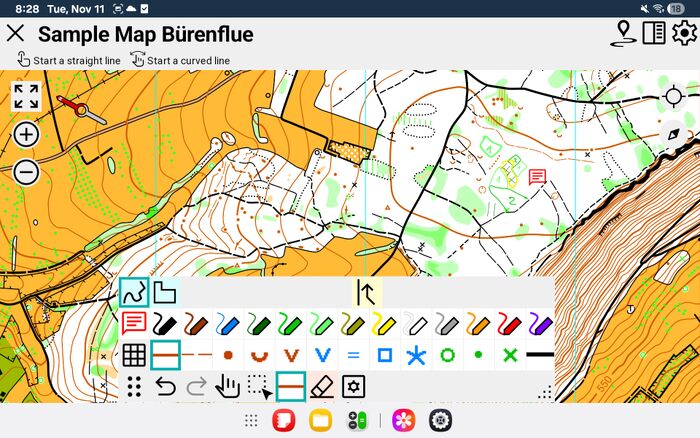

Installation of the OCAD App
Downloading and using the app is free of charge.
The OCAD App is available in the Apple App Store (iOS) and Google Play Store (Android). Search for OCAD App.
The following versions are known to work well:
- iOS 18.5 and later
- Android 13 and later
Minimum versions are:
- iOS 14.2 or later
- Android 8 or later
How to work with the OCAD App
As already mentioned above, the OCAD App is designed for mapping in the field.
To create a map, generate background maps, and later export and print the map, an OCAD Desktop license is required.
The interaction between OCAD Desktop and the OCAD App works as follows.

- 1. Create a project in OCAD Desktop
Start in OCAD Desktop with a new map or open an existing map that you want to update or review.
Optionally, supplement your map with LiDAR data, aerial images, official survey data, or Web Map Services (WMS).
- 2. Transfer project from OCAD Desktop to OCAD App Data
With OCAD Cloud Transfer, you can easily transfer your map and background maps to your mobile device.
To do this, create a new transfer project in OCAD Desktop in the OCAD App Data Exchange and upload it to the OCAD Cloud.
You will receive a QR code that you can scan with your mobile device to download the project.
Alternatively, the transfer can also be done via a USB cable.
-> More about the OCAD App Data Exchange Export.
- 3. Edit project on the app
Now you can get started with the OCAD app. In the app, you can sketch or directly draw and edit map objects.
Your background maps together with GPS help you determine your position.
-> More about OCAD app usage
- 4. Transfer project from the OCAD app to OCAD Desktop
When you have finished your field work, you can upload the project from the app to the OCAD Cloud.
Back in OCAD Desktop, go to OCAD App Data Exchange again to import your data.
During the import, OCAD checks for synchronization conflicts, e.g., if the same object has been changed in the app and in OCAD Desktop.
-> More about OCAD App Data Exchange Import
- 5. Continue editing the project in OCAD Desktop
In OCAD Desktop, you can draw sketches, continue editing your map, export or print it.
If you have not yet finished recording, you can upload the updated project to the OCDA Cloud again.
-> More about Re-uploading a project
OCAD App Usage
The functionality of the app is described on the OCAD App Usage page.
OCAD App Data Exchange
To transfer a project from OCAD Desktop to your mobile device, see the OCAD App Data Exchange documentation.
Further Information
- Detailed explanation video on YouTube in English: xxx
- Detailliertes Erklärungsvideo auf YouTube auf Deutsch: xxx
- To test the OCAD App, you can download a sample project.
- Please visit our website for Frequently Asked Questions (FAQ) and further information about the App.
- Device requirements and recommendations for suitable mobile devices.